Refer a customer who called in
The customer phoned the shop: all you need is their phone number.
The customer
1Tap Customer called in
On Home, tap Refer a Customer, then Customer called in. You need their phone number. A name and vehicle are optional.
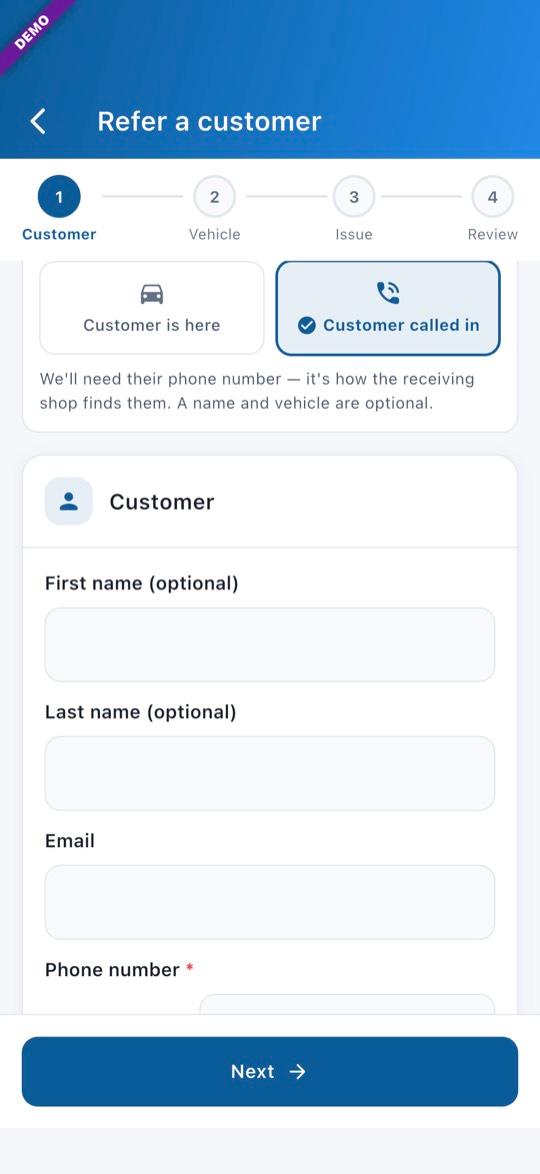
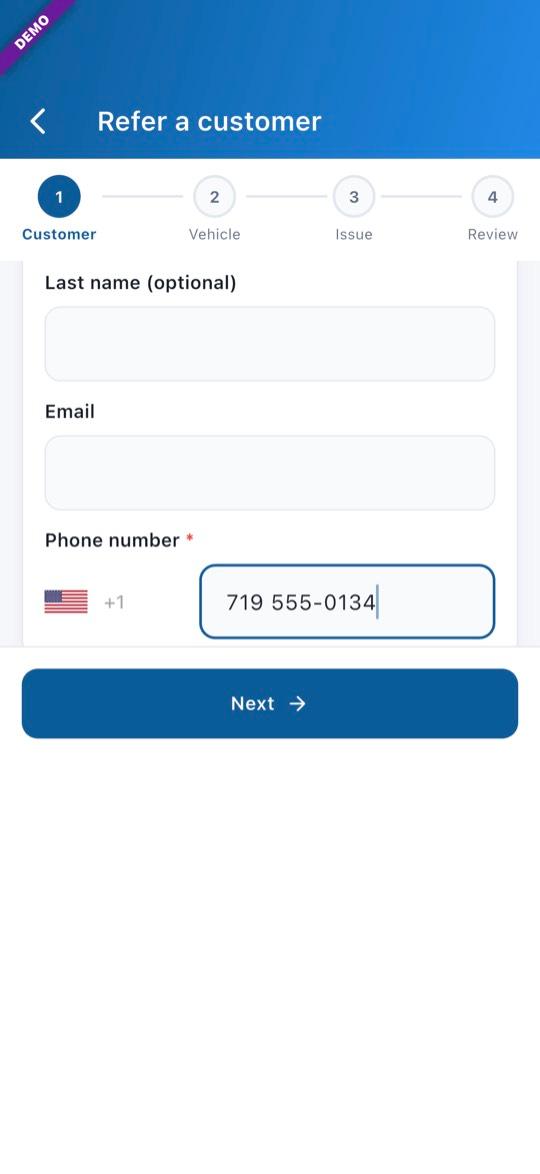
2Enter their phone number
Type the customer’s phone number, then tap Next.
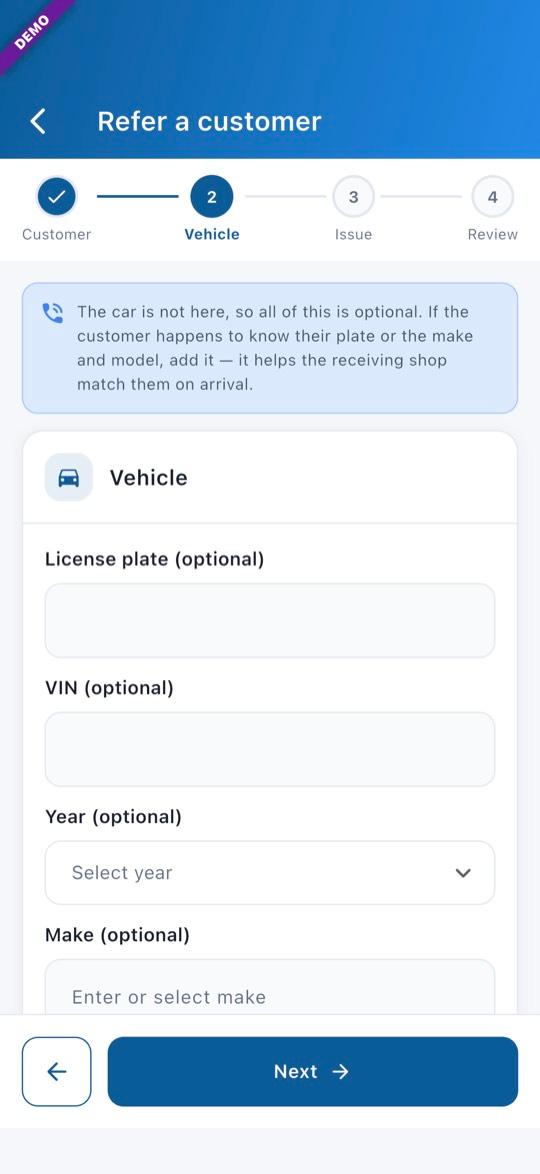
3The vehicle, if they know it
The car isn’t at the shop, so everything here is optional. Add the plate or make and model if the customer knows them.
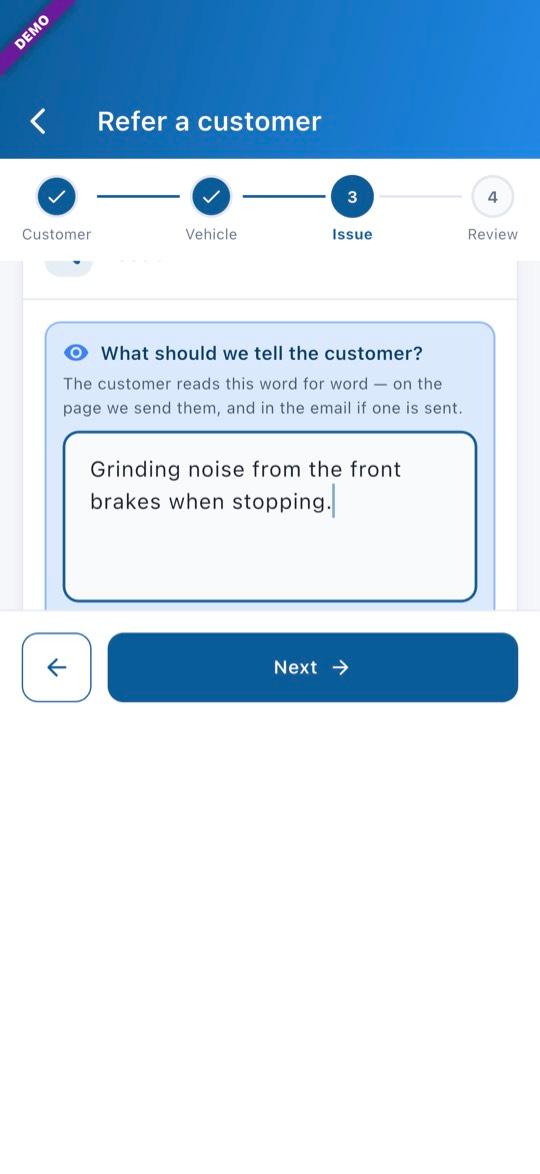
4What should we tell the customer?
Write what the customer needs in plain words. They read this wording on the page we send them.
Read the text to them, then send
5Submit, then read the wording out loud
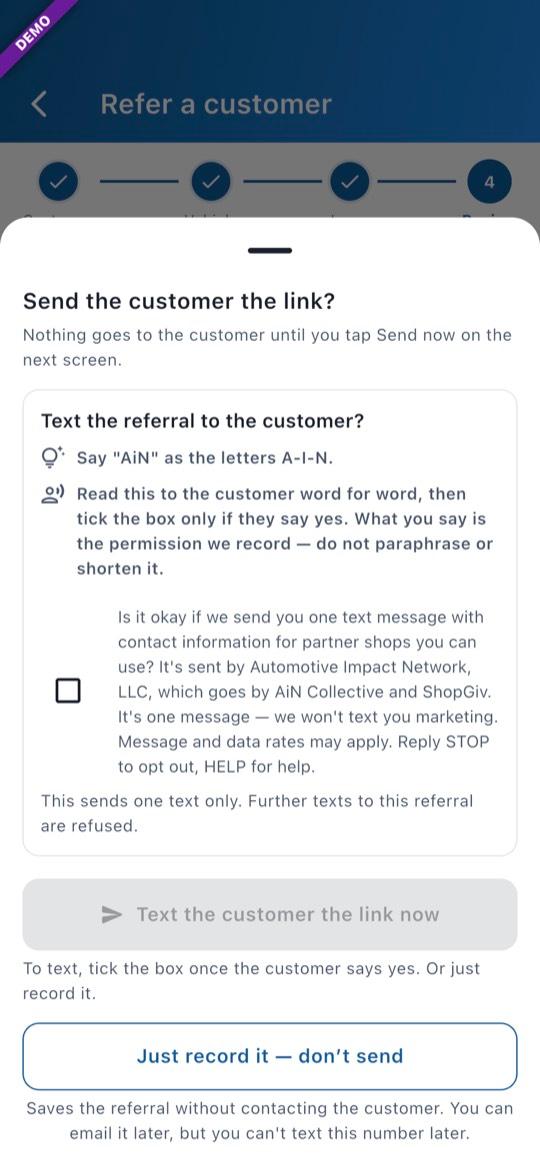
Tap Submit referral. Before anything is saved, the app shows the text wording. Read it to the customer word for word. Tick the box only if they say yes.
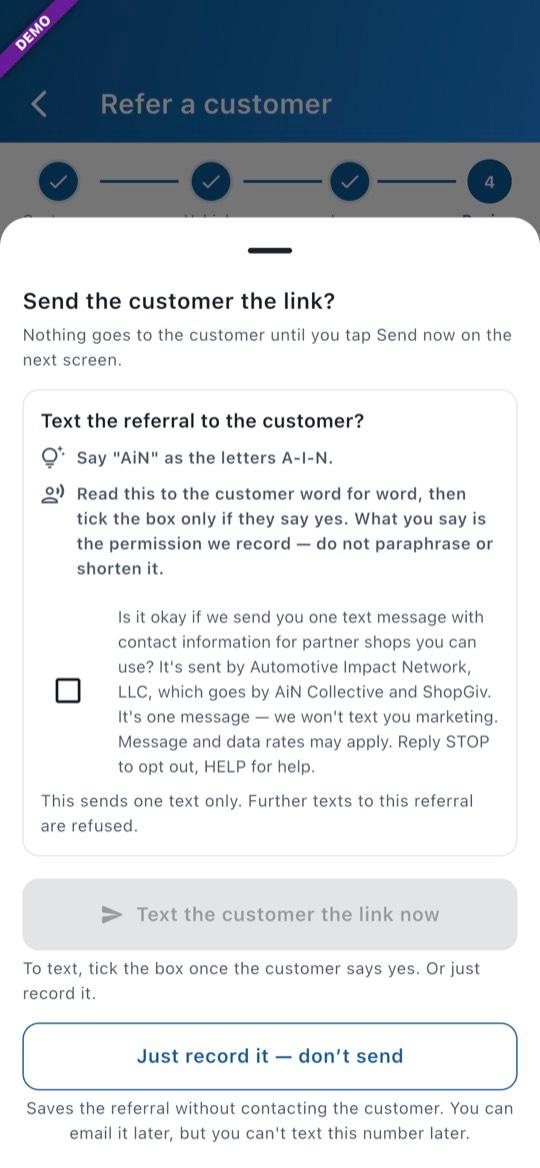
6Text the customer the link now
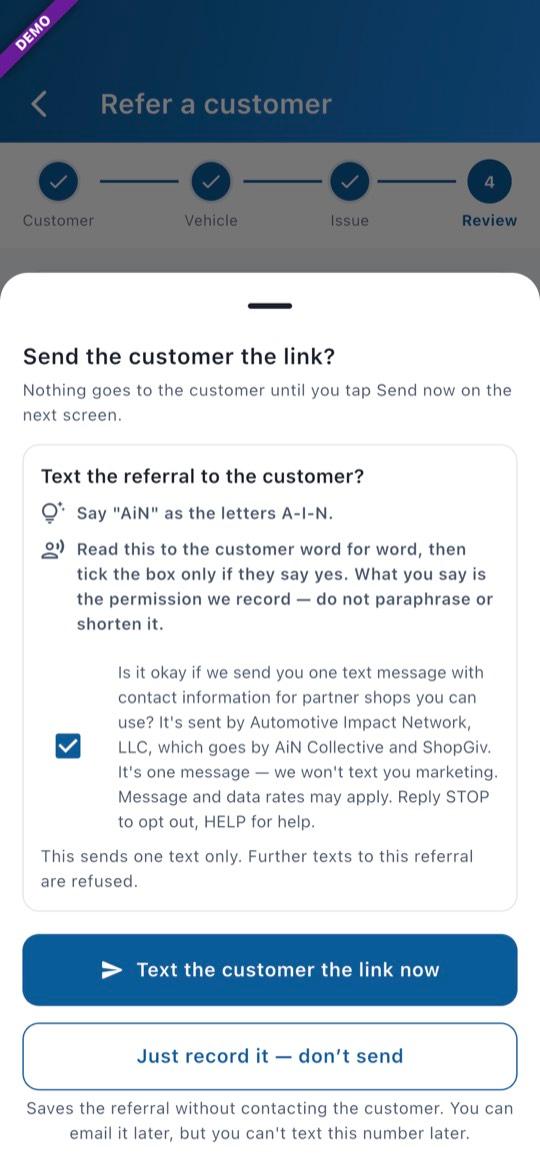
With the box ticked, tap Text the customer the link now. A call-in referral sends one text.
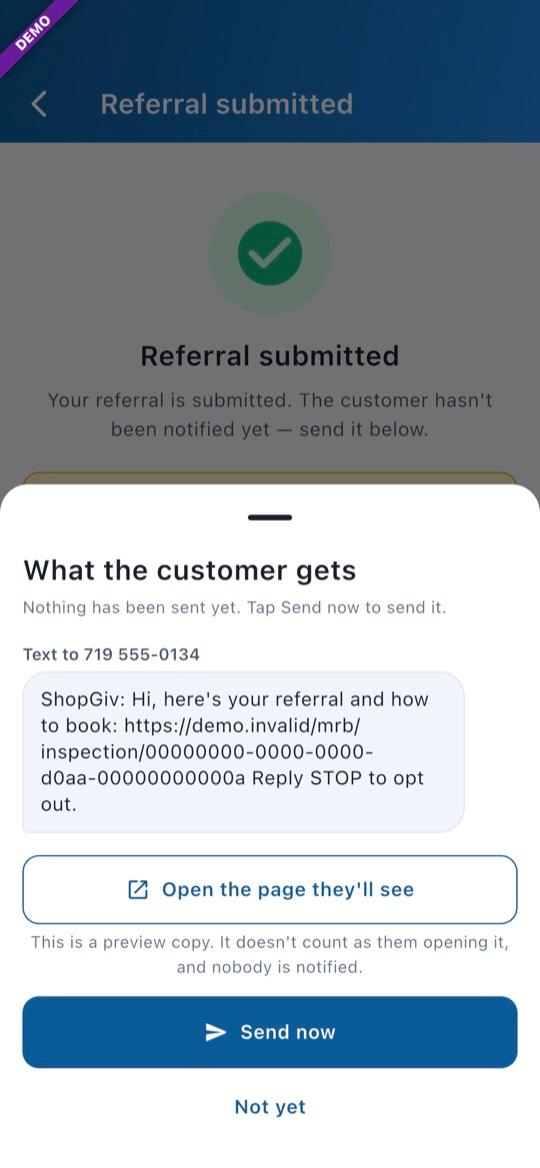
7Check the text, then Send now
The app shows the exact text the customer gets. Tap Send now. A text goes between 8 am and 8 pm the customer’s time; outside those hours it goes at 8 am their time.
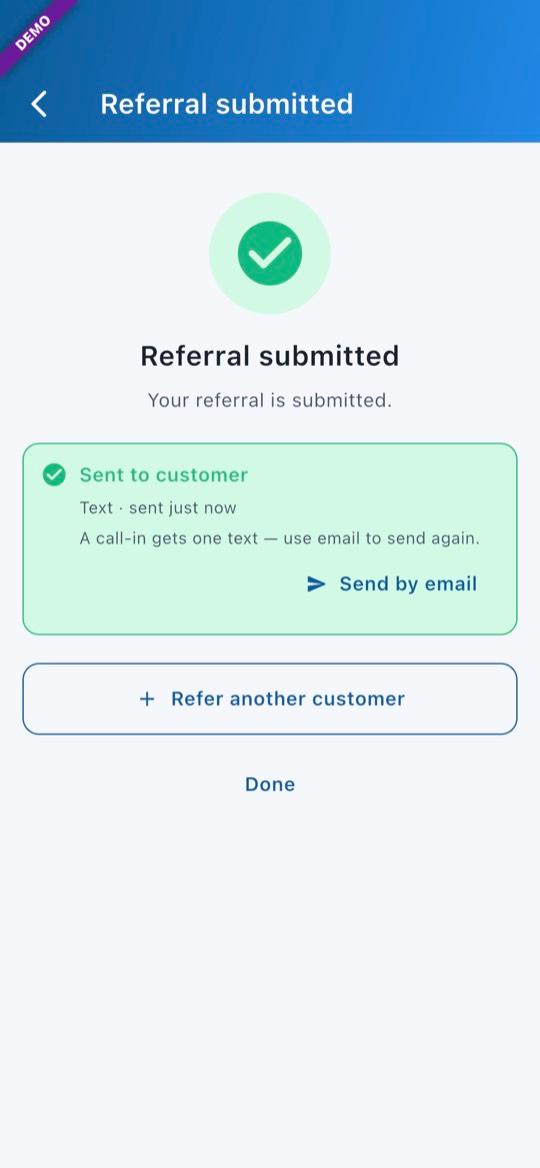
8Sent
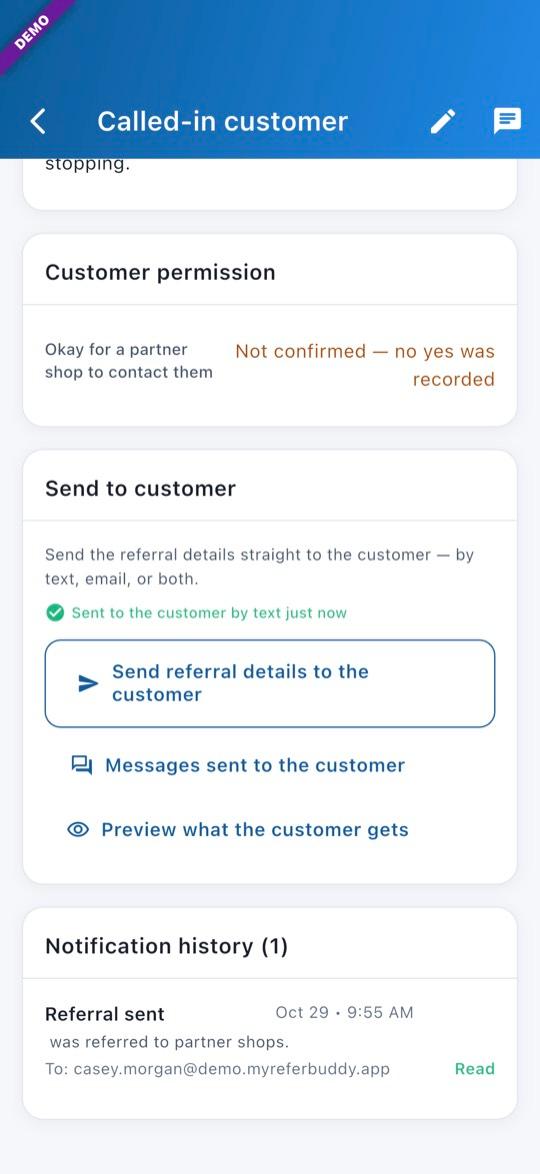
The app shows the text was sent, or when it is scheduled. To send the details again, use Send by email.
9Find it in the Tracker
Tap the referral in the Tracker to see what was sent, or Preview what the customer gets.
Just recording it
10Just record it — don’t send
If you only want to log the referral (say you told them on the phone where to go), tap Submit referral, then Just record it — don’t send. Nothing goes to the customer.
11It stays in the Tracker
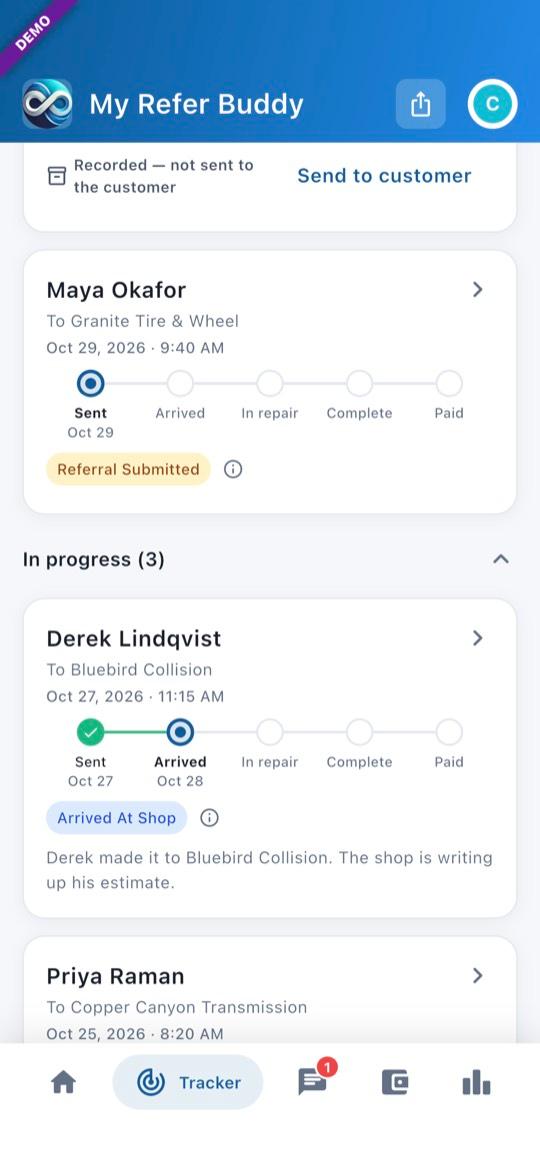
The Tracker shows Recorded — not sent to the customer. Tap Send to customer later to email it. No text permission was taken, so that number can’t be texted later.
- Pictures show the offline demo. Customers and vehicles are made up.
Questions? Email info@AINcollective.com or call (719) 463-0050.